
How the Redemption Process Works
When an Emma item is sold at an event, the winning guest will receive a Redemption Voucher (an email with an e-voucher). This voucher asks them to provide any required information, such as preferred dates, delivery details, or other booking requirements.
Once the guest completes the redemption form, you will receive an email notification containing their submitted details.
We kindly ask that you contact the guest within 2 days of the voucher being redeemed. Their contact information will be included in the redemption notification email and can also be found within the voucher on the Emma platform.
After you have contacted the guest and confirmed the booking or arrangements, you can upload your invoice for payment.
Uploading an Invoice to a Voucher
To upload an invoice for a redeemed item:
- Log in to your Emma supplier account at app.emma-live.com
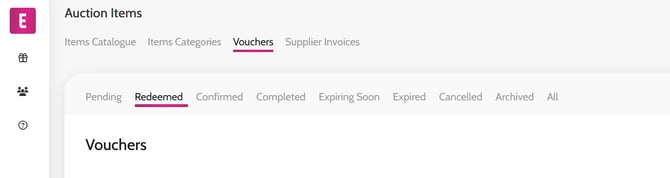
- You will be directed to the Pending Vouchers page
- Select the Redeemed tab (you are unable to see information of pending vouchers until a guest has redeemed it)
- Open the voucher you would like to view
- Scroll down to Supplier Invoice Upload & Payment
- Click Upload your invoice
- Complete all mandatory fields and click Create
- Once submitted, your invoice will be sent to our Finance Team for processing and payment
- We operate a payment run every other week
Editing an Auction item
Keeping your auction items up to date is essential to ensure guests receive accurate information, pricing reflects the current cost of items, and winners are not disappointed at redemption. If you need to suspend or remove an item from sale, please contact eliza@emma-live.com soon as possible.
- From the Emma menu on the left-hand side, go to Auction Items
- You’ll be directed to your Items Catalogue
- Click View on the item you would like to edit
- Click Edit
- Make any edits to the description, terms, images or pricing
- Click Save to apply your changes
Adding users to your Supplier Account
- From the Emma menu on the left-hand side, go to Account
- In the Team section, you can view all current users on your account
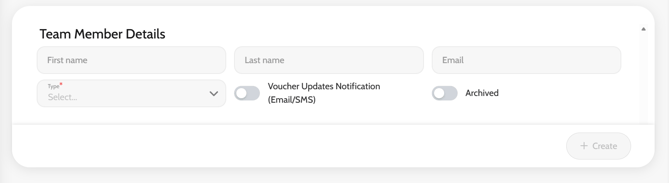
- To add a new user, click Add
- Enter the First Name, Last Name, Email Address and select Full Access
- Enable Voucher Update Notifications (Email/SMS) to receive notifications when a winning guest redeems their voucher
- Click Create to save and add the new user
Need Support?
If you experience any issues accessing vouchers or uploading invoices, please contact eliza@emma-live.com who can assist you.